Use the app
You can use oss-inbox in two ways:
- In your browser, on a local web page.
- In your terminal, with a text interface.
The command name
This page writes oss-inbox. You get this command when you
install from the source.
If you use the executable, type the file name
instead. Run the command in the folder that contains the file.
| System | Command | Example |
|---|---|---|
| Linux | ./oss-inbox-linux |
./oss-inbox-linux stop |
| macOS | ./oss-inbox-macos |
./oss-inbox-macos stop |
| Windows | .\oss-inbox-win.exe |
.\oss-inbox-win.exe stop |
Start the app
To open the web page, run this command in a terminal. On Windows, use PowerShell.
oss-inbox web
The command opens http://127.0.0.1:8765 in your browser.
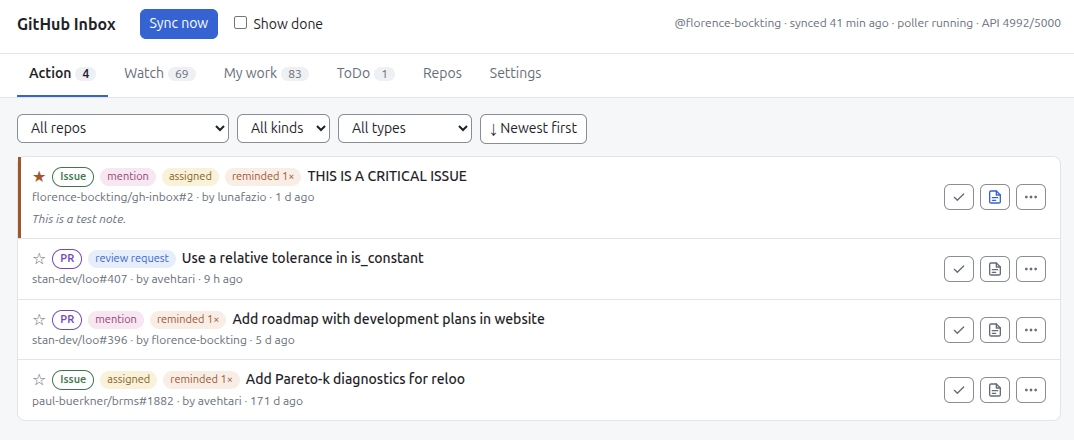
Each item has these buttons in the web page.
| Icon | Meaning |
|---|---|
| ⚐ / ⚑ | Pin the item to the top, or unpin it |
 |
Mark the item done |
 |
Undo done |
 |
Add or edit a note. The icon is blue when the item has a note. |
 |
Show more options: reminder, stall time and Move to… |
 |
Remind me every N hours (behind ) |
 |
Stalled after N days, in My work (behind ) |
Keys in the web page:
| Key | Action |
|---|---|
j / k |
Go to the next or previous item |
e |
Mark the item done, or undo done |
s |
Pin the item to the top, or unpin it |
x |
Select the item, or unselect it |
u |
Undo the last action |
? |
Show the list of keys |
← / → |
Go to the previous or next tab, when a tab has the focus |
The keys do nothing while you type in a field. To turn them off, clear Keyboard shortcuts in the Settings tab. Your browser keeps this setting, not the app.
To open the terminal UI, run this command in a terminal. On Windows, use PowerShell.
oss-inbox tui
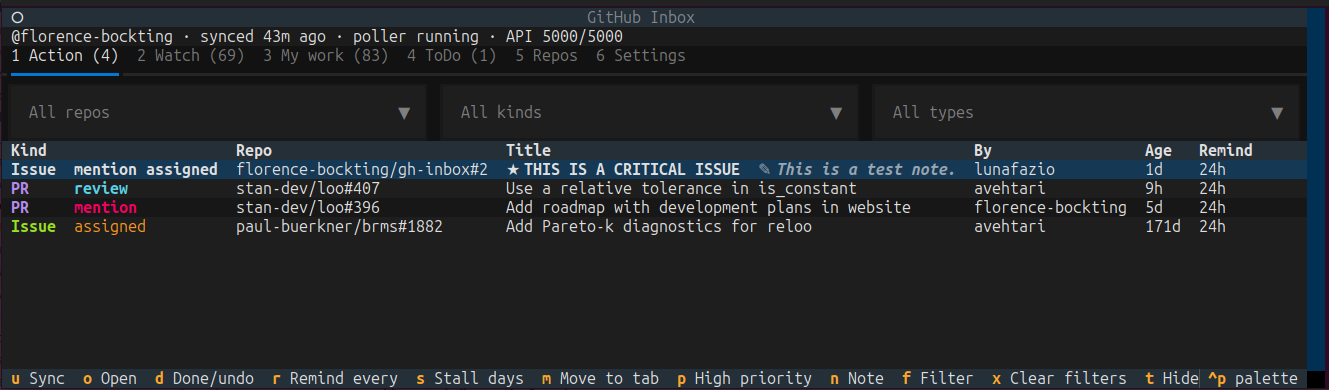
Keys in the terminal UI:
| Key | Action |
|---|---|
1–6 |
Go to a tab |
o or Enter |
Open the item in the browser |
d |
Done, or undo |
n |
Write or change the note of the item |
r |
Set the reminder interval of the item |
s |
Set the stall time of the item (My work) |
m |
Move the item to another tab |
p |
Pin the item to the top, or unpin it |
f / x |
Go to the filters / clear the filters |
t |
Hide stalled items (My work) |
w |
Show only the PRs with an overdue review (My work) |
h |
Show done items |
v |
Reverse the order: newest first or oldest first |
A |
Mark all Watch items done |
Space |
Watch a repo, or stop (Repos) |
a / L |
Add a repo / load your repos (Repos) |
e |
Edit a setting (Settings) |
u |
Sync now |
q |
Quit |
First steps
Do steps 1 to 3 once, after the first start. Then the inbox fills up. Do step 4 when you want to stop the app.
-
Select the repos to watch. Open the Repos tab.
Click Load my repos. Or type
owner/repoand click Add and watch. Then select the check box of each repo to watch.Press
Lto load your repos. Or pressato add a repo. Then pressSpaceon each repo to watch.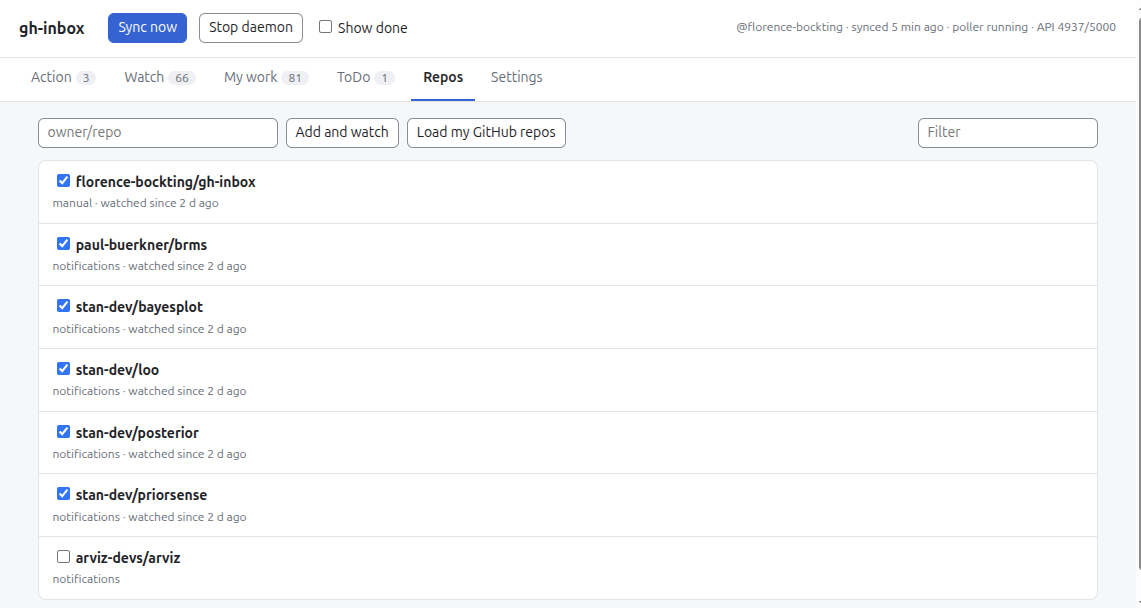
-
Check the settings. Open the Settings tab. Keep the default settings, or change them.
The tab has three sections:
- GitHub: the account, the server and the API use.
The app uses the login of the GitHub CLI. To log in, run
gh auth login. - Codeberg: the account, the server and the token.
- General: the other settings.
Type a new value in a field. Then click Apply. The app saves no change before you click Apply.
Reset to defaults fills in the default values. Click Apply to save them.
Press
eon a setting to edit it.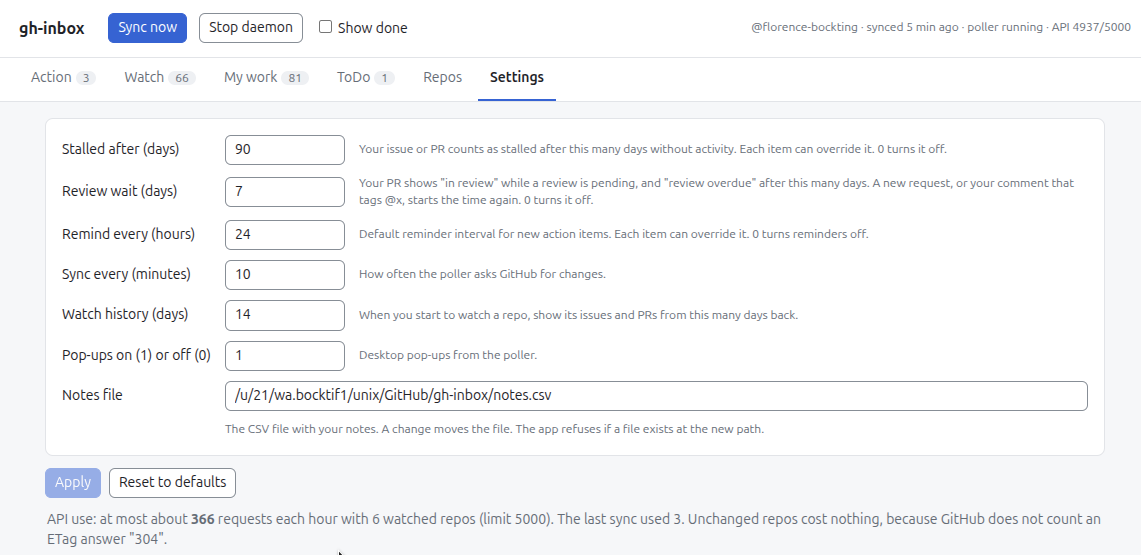
- GitHub: the account, the server and the API use.
The app uses the login of the GitHub CLI. To log in, run
-
Sync. Click Sync now, or press
uin the terminal. Wait for the items to appear in the tabs. -
Stop the daemon. The daemon keeps running when you close the terminal or the web page. It then still syncs and sends pop-ups. Stop the daemon with:
Click Stop daemon.
Run
oss-inbox stop.
Basic commands
The background process (the "daemon") syncs every 60 minutes (default settings). It sends the pop-ups and serves the web page.
The daemon runs in the background. You can close the terminal after oss-inbox web.
To stop the daemon, click Stop daemon on the web page, or run oss-inbox stop.
The web page then shows "The daemon stopped" within 5 seconds.
When the daemon runs again, the open page reloads.
Run these commands in a terminal on Linux and macOS, or in PowerShell on Windows.
To get the oss-inbox command, see Install.
| Command | What it does |
|---|---|
oss-inbox daemon |
Starts the background process. Only one can run. |
oss-inbox web |
Opens the web page. Starts the daemon in the background if it does not run. |
oss-inbox stop |
Stops the daemon |
oss-inbox tui |
Opens the terminal UI |
oss-inbox sync |
Runs one sync now |
oss-inbox test-popup |
Sends 2 test pop-ups |
How your inbox is organized
Overview of the tabs
An item is one issue or PR in a tab.
| Tab | Content |
|---|---|
| Action | Review requests, @mentions and assignments in the repos that you watch |
| Watch | New issues and PRs, and all other notifications, in the repos that you watch. No action is necessary. |
| My work | Your open issues and PRs in all repos. An item is "stalled" when it has no activity for N days. A PR shows "in review" while a review is pending, and "review overdue" after N days. See Default settings for N. |
| ToDo | Your own tasks: issues and PRs where you mention yourself, in the repos that you watch. You can also move any item here. |
| Repos | The repos that you watch in this app |
| Settings | The GitHub and Codeberg accounts. Stall time, review wait, reminder interval, sync interval, pop-ups and the notes file. See Default settings. |
Each item has a PR, Issue or Draft PR label. In Action, an item can have a mention tag and an assigned tag at the same time. The two tags have different colors.
You can filter Action, Watch, My work and ToDo by platform (GitHub or Codeberg), repo and kind. You can also filter Action by type. In My work, you can also hide the stalled items, or show only the PRs with an overdue review.
Items are ordered by default according to recency with the most recent item coming first. This order can be changed from "Newest first" to "Oldest first". Exceptions are stalled and pinned items.
How the item status updates
The app finds out when you act on an item:
- Review request: GitHub removes the request when you submit a review. The item then goes to "done".
- Mention: the item goes to "done" when you reply after the last mention. A new mention opens the item again. While you are an assignee, the item stays open.
- To-do: your later replies do not mark the to-do done. A close or a merge
also does not mark it done. Click . A
newer self-mention opens it again.
- Assignment: the item goes to "done" when the issue closes, or when you are no longer assigned. A new assignment opens a done item again.
You can also click ("Done") yourself,
which changes only the appearance in the app. GitHub still shows the
notification as unread.
When pop-ups show up
A pop-up appears when...
- ... a new item appears in Action or ToDo.
- ... an item gets stalled i.e., no action
has been done on the item within a specific time period ().
The pop-up comes again after a reminder interval ().
- ... a PR review that you requested is overdue. The pop-up comes again after the
reminder interval (). To start
the wait time again, request the review again, or tag @x in a comment.
A pop-up comes again after the reminder interval
until you act. You can set an interval for each item (). 0 turns the reminders off.
The title of a pop-up starts with an emoji. The emoji shows the type:
| Emoji | Pop-up |
|---|---|
| 🔍 | Review requested |
| 💬 | You were mentioned |
| 👥 | Your team was mentioned |
| 📌 | You were assigned |
| 🔔 | Other action item |
| ✅ | Your to-do |
| ⏳ | Review overdue |
| 💤 | Stalled |
| 📬 | Summary of more than 5 pop-ups |
| ⚠️ | Few GitHub API requests left |
More than 5 pop-ups at the same time become one summary pop-up. The app sends the pop-ups 2 seconds apart. Some desktops do not show pop-ups that come faster.
Default settings
The app comes with certain default settings in the Settings tab which you can change any time.
| Setting | Default |
|---|---|
| Stalled after (days) | 30 |
| Review wait (days) | 3 |
| Remind every (hours) | 24 |
| Sync every (minutes) | 60 |
| Watch history (days) | 14 |
| Pop-ups on (1) / off (0) | 1 |
| Notes file | ~/oss-inbox/notes.csv |
| Codeberg server | https://codeberg.org |
| Keyboard shortcuts (web page) | on |
Work with items
Pin an item
- Click ⚐ on an item to pin it. Or press
sin the web page, orpin the terminal UI. Pinned items come first in the list. - Click the red ⚑, or press the key again, to unpin the item.
- A PR with a new overdue review gets a pin automatically. Only you remove it.
- In the web page, a pinned item has a colored background. In the terminal UI, it has a red ⚑ and an orange title.
Select several items
In the web page, you can act on several items at the same time.
- Select the check box of each item. Or press
xon the item. - Click Mark done. Or select a tab in Move to….
Clear selection unselects all items. A filter that hides an item also unselects it. A bulk action applies only to the items that you can see.
Undo an action
In the web page, a message at the bottom confirms an action. These actions have an Undo button:
- Mark an item done.
- Move an item to another tab.
- Mark done or move the selected items.
- Mark all done in Watch. This also includes the items that a filter hides.
Click Undo, or press u. The message closes after 8 seconds. Move the mouse
on it to keep it open.
An error shows in a bar at the top. The bar stays until you click Close.
Move an item to another tab
- Click on an item. Then use Move to…. In the
terminal UI, press
m. The item goes to Action, Watch, My work or ToDo. - The pop-ups follow the tab that shows the item. A moved item gives stalled pop-ups only when it is your own item in My work.
Add a note to an item
- Click on an item, or press
nin the terminal UI. Write the note. In the web page, Ctrl+Enter saves it. An empty note deletes it. - A note belongs to the issue or PR. It shows in every tab with that item.
- The app saves the notes in a CSV file. The default is
~/oss-inbox/notes.csv(default settings). You can edit the file by hand. The app reads it again at each page load. - When you change the "Notes file" setting, the app moves the file. If a file exists at the new path, the app refuses.
- The terminal UI shows and edits only the first line of a note. Edit notes with more than one line in the web page.
Get reminders
Mention yourself in an issue or PR on GitHub. Use your own GitHub login, for example "@your-login open a follow-up PR". The item goes to ToDo, not to Action. You get a pop-up. The pop-up comes again after the reminder interval until you act. See also When pop-ups show up.
To mark the to-do done, see How the item status updates.
Track stalled items
An item in My work is "stalled" when it has no activity for 30 days. This applies to your own open issues and PRs.
- A stalled item gives one pop-up.
- To change the 30 days for all items, change "Stalled after (days)". See Default settings.
- To change the days for one item, click , then . In the
terminal UI, press
s. 0 turns it off for the item. - To hide the stalled items, use the filter in My work. In the terminal UI,
press
t. - A stalled item appears first in the list of the My work tab.
Codeberg
The app also syncs Codeberg when you save a Codeberg access token.
- On Codeberg, open https://codeberg.org/user/settings/applications.
- Create a token with read access to notification, issue, repository and user.
- In the app, open the Settings tab.
- In the Codeberg section, paste the token in Login. Then click
Save token. In the terminal UI, select Login under Codeberg.
Then press
e.
The Account row then shows "Connected as @your-login".
The app saves the token in ~/.local/share/oss-inbox/forgejo.token. Only you can
read this file. The app never shows the token again.
An icon and a prefix in front of each repo show where the item comes from:
GH for GitHub, CB for Codeberg. The terminal UI shows only the prefix.
To add a Codeberg repo, paste its URL in the Repos tab, for example
https://codeberg.org/owner/repo.
The Codeberg sync is a first version. It fills the tabs in this way:
| Tab | Codeberg items |
|---|---|
| Action | Open PRs with your review request, open items that mention you, open items assigned to you. Watched repos only. |
| Watch | The other notifications of watched repos |
| My work | Your open issues and PRs |
These GitHub features do not work for Codeberg yet:
- The ToDo tab from a mention of yourself.
- A new mention on a done item does not open it again.
- "In review" and "review overdue" on your PRs.
- New issues and PRs in watched repos without a notification.
To use another Forgejo server, change Server in the Codeberg section of the settings. In the web page, click Apply to save it.
GitHub API use
The app only reads from GitHub. It never writes to GitHub.
GitHub limits the API requests for each account, usually to 5000 each hour.
The app shares this limit with gh and other tools that use your login.
A repo with no changes costs no request, because GitHub does not count the
answer "304 Not Modified".
- Below 20% of the limit, the app warns you. The status bar shows the number in color, the web page shows a banner, and one pop-up comes.
- Below 10% of the limit, the sync pauses. It starts again when GitHub resets the limit. The status bar shows the time.
The GitHub section of the Settings tab shows the most requests that the app can use in one hour with your watched repos. It also shows the cost of the last sync.
To use fewer requests, watch fewer repos, or increase "Sync every (minutes)". See Default settings.
The status bar is at the top of the web page and of the terminal UI. It shows:
| Part | Meaning |
|---|---|
@your-login |
The account that gh and codeberg use |
synced 5m ago |
The time of the last sync. Before the first sync: never synced. |
poller running |
The daemon syncs. In red: poller not running. Run oss-inbox web to start the daemon again. |
sync error |
The last sync failed. In the web page, move the mouse on it to see the error. |
API 4800/5000 |
GitHub API requests left in this hour, and the limit. See GitHub API use. |
The terminal UI also shows showing done when it shows done items.
Privacy
- The web page listens only on
127.0.0.1. Other computers cannot open it. - The data is in
~/.local/share/oss-inbox/. Remove this folder to remove all data. Your notes are in a different place: the "Notes file" setting (add a note to an item). - The app does not send your notes to GitHub.
- The pop-ups show issue titles. Other people can see them on your screen.